4장. Activity와 Intent

2023. 11. 7. 21:54·안드로이드/연습 코드

1. SampleLayoutInflater

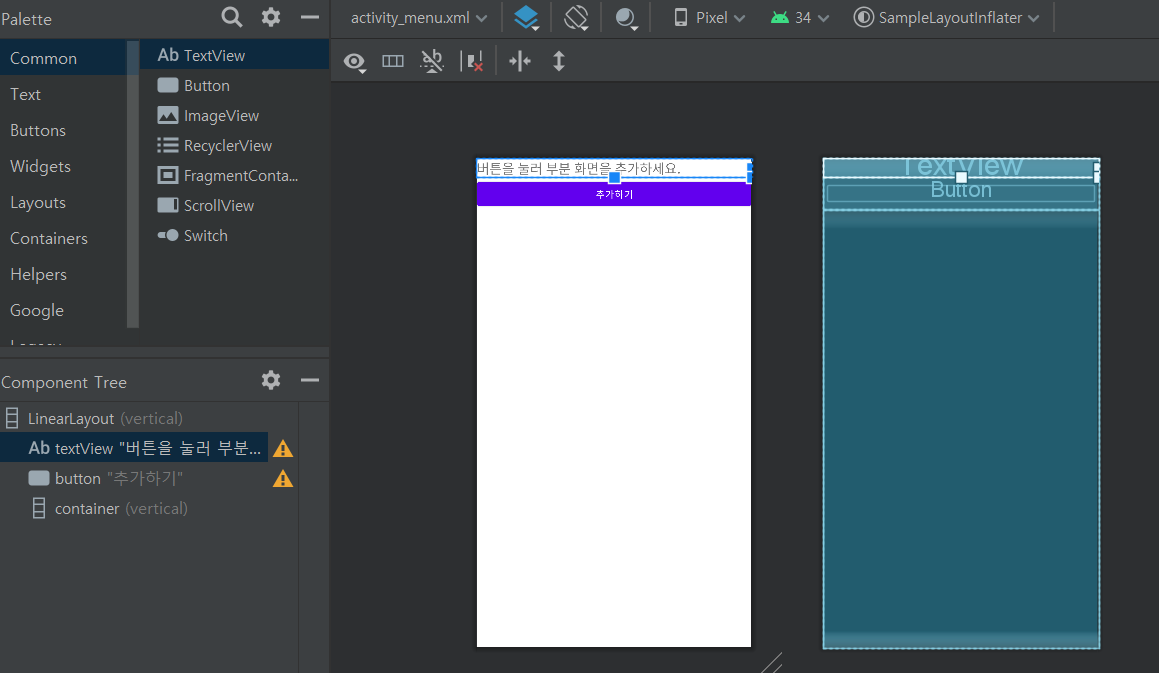
1-1. activity_menu.xml

<?xml version="1.0" encoding="utf-8"?>
<LinearLayout xmlns:android="http://schemas.android.com/apk/res/android"
    android:layout_width="match_parent"
    android:layout_height="match_parent"
    android:orientation="vertical">

    <TextView
        android:id="@+id/textView"
        android:layout_width="match_parent"
        android:layout_height="wrap_content"
        android:text="버튼을 눌러 부분 화면을 추가하세요."
        android:textSize="20sp" />

    <Button
        android:id="@+id/button"
        android:layout_width="match_parent"
        android:layout_height="wrap_content"
        android:text="추가하기" />

    <LinearLayout
        android:id="@+id/container"
        android:layout_width="match_parent"
        android:layout_height="match_parent"
        android:orientation="vertical">
    </LinearLayout>
</LinearLayout>


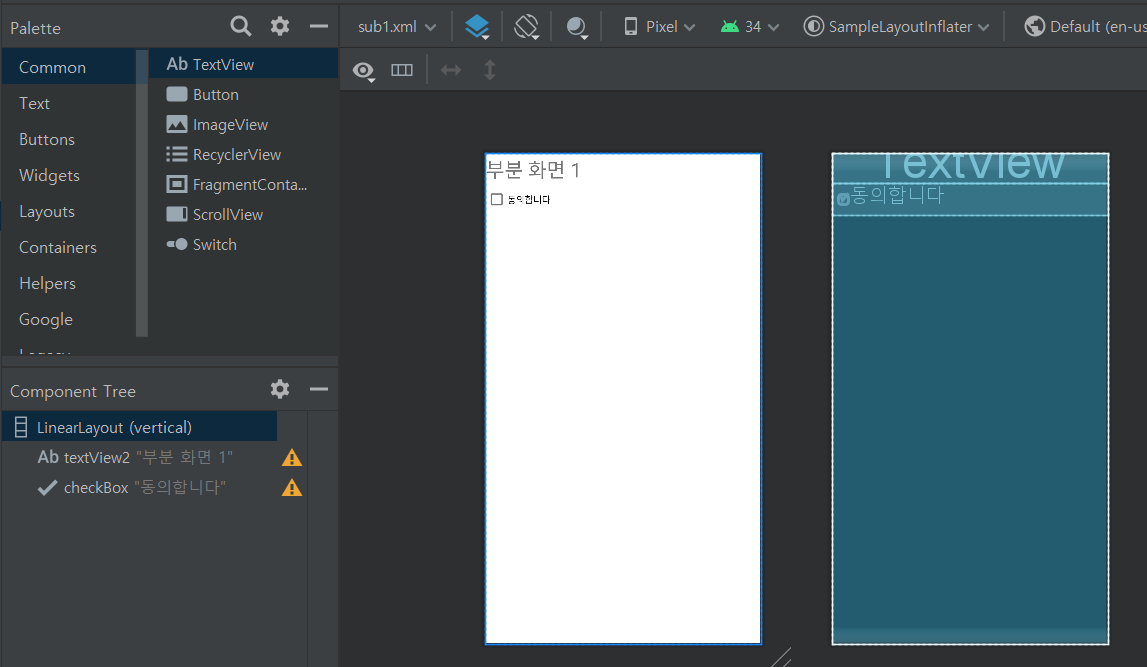
1-2. sub1.xml


<?xml version="1.0" encoding="utf-8"?>
<LinearLayout xmlns:android="http://schemas.android.com/apk/res/android"
    android:orientation="vertical" android:layout_width="match_parent"
    android:layout_height="match_parent">

    <TextView
        android:id="@+id/textView2"
        android:layout_width="match_parent"
        android:layout_height="wrap_content"
        android:text="부분 화면 1"
        android:textSize="30sp" />

    <CheckBox
        android:id="@+id/checkBox"
        android:layout_width="match_parent"
        android:layout_height="wrap_content"
        android:text="동의합니다" />
</LinearLayout>


1-3. MenuActivity.java

public class MenuActivity extends AppCompatActivity {
    LinearLayout container;

    @Override
    protected void onCreate(Bundle savedInstanceState) {
        super.onCreate(savedInstanceState);
        setContentView(R.layout.activity_menu);

        container = findViewById(R.id.container);

        Button button = findViewById(R.id.button);
        button.setOnClickListener(new View.OnClickListener() {
            @Override
            public void onClick(View view) {
                LayoutInflater inflater = (LayoutInflater) getSystemService(Context.LAYOUT_INFLATER_SERVICE);
                inflater.inflate(R.layout.sub1, container, true);
                CheckBox checkBox = container.findViewById(R.id.checkBox);
                checkBox.setText("로딩되었어요.");
            }
        });
    }
}


2. SampleIntent

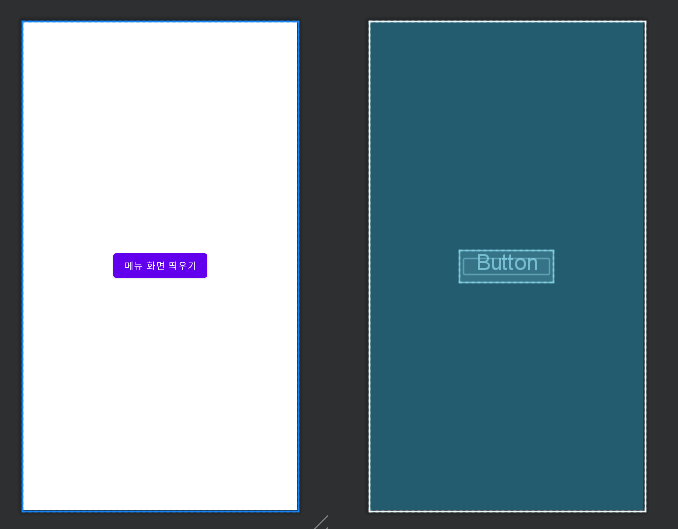
2-1. activity_main.xml

<?xml version="1.0" encoding="utf-8"?>
<androidx.constraintlayout.widget.ConstraintLayout xmlns:android="http://schemas.android.com/apk/res/android"
    xmlns:app="http://schemas.android.com/apk/res-auto"
    xmlns:tools="http://schemas.android.com/tools"
    android:layout_width="match_parent"
    android:layout_height="match_parent"
    tools:context=".MainActivity">

    <Button
        android:id="@+id/button"
        android:layout_width="wrap_content"
        android:layout_height="wrap_content"
        android:text="메뉴 화면 띄우기"
        app:layout_constraintBottom_toBottomOf="parent"
        app:layout_constraintEnd_toEndOf="parent"
        app:layout_constraintStart_toStartOf="parent"
        app:layout_constraintTop_toTopOf="parent" />

</androidx.constraintlayout.widget.ConstraintLayout>


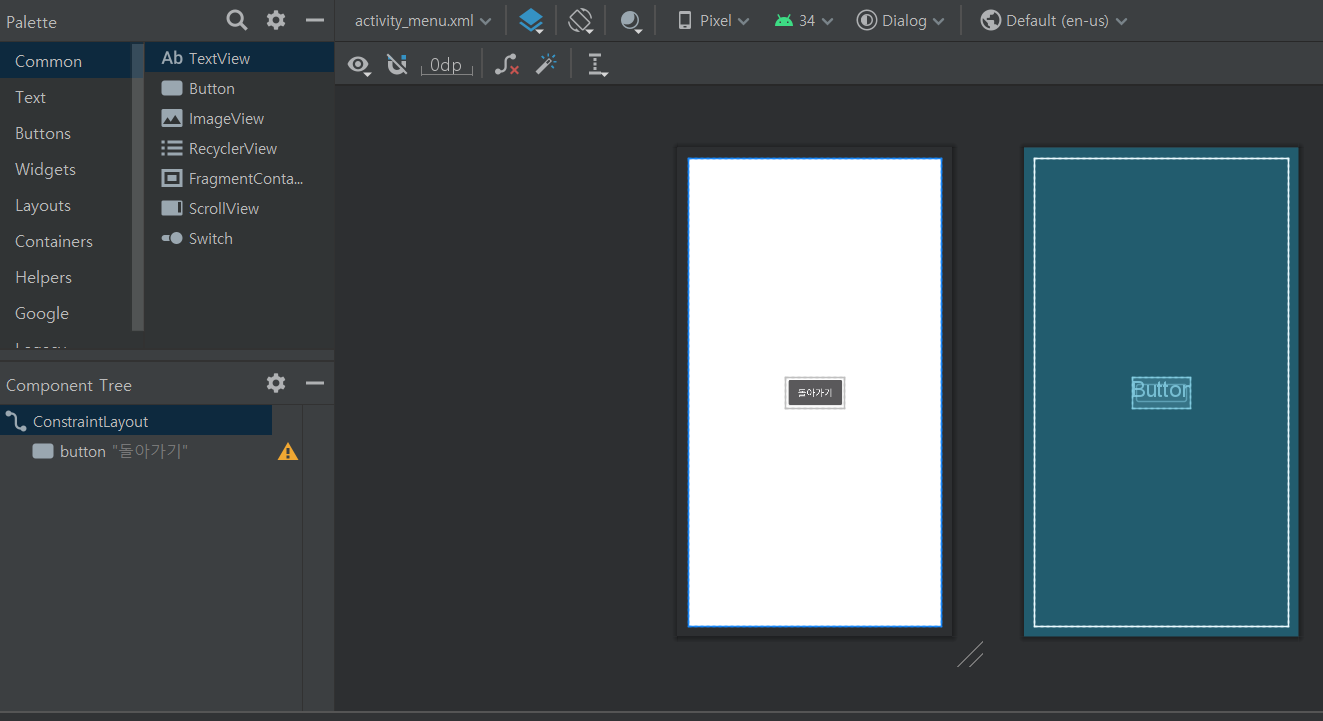
2-2. activity_menu.xml

<?xml version="1.0" encoding="utf-8"?>
<androidx.constraintlayout.widget.ConstraintLayout xmlns:android="http://schemas.android.com/apk/res/android"
    xmlns:app="http://schemas.android.com/apk/res-auto"
    xmlns:tools="http://schemas.android.com/tools"
    android:layout_width="match_parent"
    android:layout_height="match_parent"
    tools:context=".MenuActivity">

    <Button
        android:id="@+id/button"
        android:layout_width="wrap_content"
        android:layout_height="wrap_content"
        android:text="돌아가기"
        app:layout_constraintBottom_toBottomOf="parent"
        app:layout_constraintEnd_toEndOf="parent"
        app:layout_constraintStart_toStartOf="parent"
        app:layout_constraintTop_toTopOf="parent" />
</androidx.constraintlayout.widget.ConstraintLayout>


2-3. MainActivity.java

public class MainActivity extends AppCompatActivity {
    public static final int REQUEST_CODE_MENU = 101;

    @Override
    protected void onCreate(Bundle savedInstanceState) {
        super.onCreate(savedInstanceState);
        setContentView(R.layout.activity_main);

        Button button = findViewById(R.id.button);
        button.setOnClickListener(new View.OnClickListener() {
            @Override
            public void onClick(View v) {
                Intent intent = new Intent(getApplicationContext(), MenuActivity.class);
                startActivityForResult(intent, REQUEST_CODE_MENU);
            }
        });

    }
    @Override
    protected void onActivityResult(int requestCode, int resultCode, @Nullable Intent data) {
        super.onActivityResult(requestCode, resultCode, data);

        if (requestCode == REQUEST_CODE_MENU) {
            Toast.makeText(getApplicationContext(),
                    "onActivityResult 메소드 호출됨. 요청 코드 : " + requestCode +
                            ", 결과 코드 : " + resultCode, Toast.LENGTH_LONG).show();
            if (resultCode == RESULT_OK) {
                String name = data.getStringExtra("name");
                Toast.makeText(getApplicationContext(), "응답으로 전달된 name : " + name,
                        Toast.LENGTH_LONG).show();
            }
        }
    }
}


2-4. MenuActivity.java

public class MenuActivity extends AppCompatActivity {

    @Override
    protected void onCreate(Bundle savedInstanceState) {
        super.onCreate(savedInstanceState);
        setContentView(R.layout.activity_menu);

        Button button = findViewById(R.id.button);
        button.setOnClickListener(new View.OnClickListener() {
            public void onClick(View v) {
                Intent intent = new Intent();
                intent.putExtra("name", "mikel jodan goat!");
                setResult(RESULT_OK, intent);
                finish();
            }
        });
    }
}


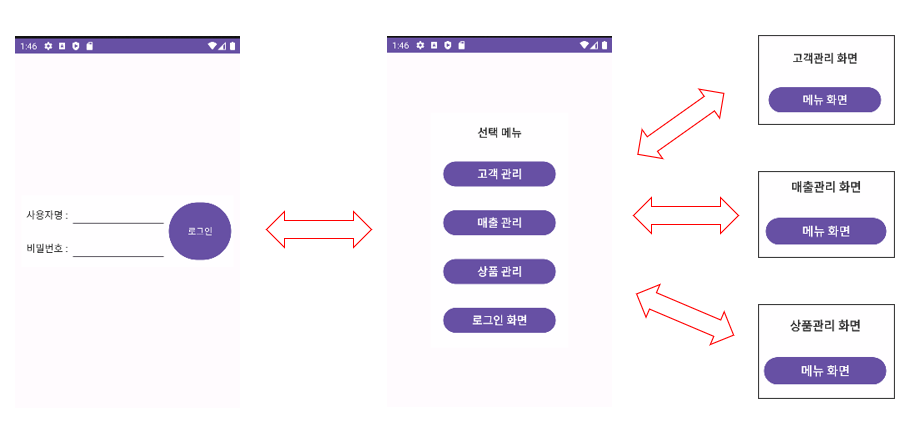
3. [LAB]  Screen Transition App 만들기


3-1. AndroidManifest.xml

<?xml version="1.0" encoding="utf-8"?>
<manifest xmlns:android="http://schemas.android.com/apk/res/android"
    xmlns:tools="http://schemas.android.com/tools">

    <application
        android:allowBackup="true"
        android:dataExtractionRules="@xml/data_extraction_rules"
        android:fullBackupContent="@xml/backup_rules"
        android:icon="@mipmap/ic_launcher"
        android:label="@string/app_name"
        android:roundIcon="@mipmap/ic_launcher_round"
        android:supportsRtl="true"
        android:theme="@style/Theme.MyApplication12"
        tools:targetApi="31">

        <!--> android:name 필드에 시작화면 액티비티 이름 지정(.으로 시작) <-->
        <activity
            android:name=".LoginActivity"
            android:label="@string/app_name"
            android:exported="true">
            <intent-filter>
                <action android:name="android.intent.action.MAIN" />

                <category android:name="android.intent.category.LAUNCHER" />
            </intent-filter>
        </activity>

        <!-->앱에 들어갈 다른 액티비티는 이곳에 지정<-->
        <activity android:name=".MenuActivity" />
        <activity android:name=".CustomerActivity" />
        <activity android:name=".ProductActivity" />
        <activity android:name=".RevenueActivity" />

    </application>
</manifest>


3-2. activity_login.xml

<RelativeLayout xmlns:android="http://schemas.android.com/apk/res/android"
    android:layout_width="match_parent"
    android:layout_height="match_parent" >

   <RelativeLayout
       android:layout_width="wrap_content"
       android:layout_height="wrap_content"
       android:layout_margin="10dp"
       android:layout_centerInParent="true"
       android:background="#aaffffff"
       >
       <LinearLayout
          android:orientation="vertical"
          android:layout_width="wrap_content"
          android:layout_height="wrap_content"
          android:layout_alignParentLeft="true"
          android:layout_toLeftOf="@+id/loginButton"
          android:layout_margin="4dp"
          >
          <LinearLayout
             android:orientation="horizontal"
             android:layout_width="wrap_content"
             android:layout_height="wrap_content"
             android:layout_margin="4dp"
             >
            <TextView
               android:id="@+id/usernameLabel"
               android:text="사용자명 : "
               android:textColor="#ff222222"
               android:textSize="16dp"
               android:layout_width="wrap_content"
               android:layout_height="wrap_content"
               />

            <EditText
               android:id="@+id/usernameInput"
               android:layout_width="170dp"
               android:layout_height="wrap_content"
               android:layout_alignBaseline="@id/usernameLabel" />
         </LinearLayout>
         <LinearLayout
             android:orientation="horizontal"
             android:layout_width="wrap_content"
             android:layout_height="wrap_content"
             android:layout_margin="4dp"
             >
            <TextView
               android:id="@+id/passwordLabel"
               android:text="비밀번호 : "
               android:textColor="#ff222222"
               android:textSize="16dp"
               android:layout_width="wrap_content"
               android:layout_height="wrap_content"
               />

            <EditText
               android:id="@+id/passwordInput"
               android:layout_width="170dp"
               android:layout_height="wrap_content"
               android:layout_alignBaseline="@id/passwordLabel"
               android:layout_below="@+id/usernameInput"
               android:inputType="textPassword" />
         </LinearLayout>
      </LinearLayout>
      <Button
         android:id="@+id/loginButton"
         android:layout_width="100dp"
         android:layout_height="100dp"
         android:layout_alignParentRight="true"
         android:layout_centerVertical="true"
         android:layout_marginRight="4dp"
         android:text="로그인"
         />
   </RelativeLayout>
</RelativeLayout>


3-3. activity_menu.xml

<RelativeLayout xmlns:android="http://schemas.android.com/apk/res/android"
    android:layout_width="match_parent"
    android:layout_height="match_parent" >

   <LinearLayout
      android:orientation="vertical"
       android:layout_width="wrap_content"
       android:layout_height="wrap_content"
       android:layout_margin="20dp"
       android:padding="20dp"
       android:layout_centerInParent="true"
       android:background="#aaffffff"
       >
       <TextView
         android:id="@+id/titleText"
         android:layout_width="180dp"
         android:layout_height="wrap_content"
         android:gravity="center_horizontal"
         android:text="선택 메뉴"
         android:textSize="18dp"
         android:textStyle="bold"
         android:textColor="#ff333333"
         />
       <Button
         android:id="@+id/menu01Button"
         android:layout_width="180dp"
         android:layout_height="wrap_content"
         android:layout_marginTop="30dp"
         android:text="고객 관리"
         android:textSize="18dp"
         android:textStyle="bold"
         />
      <Button
         android:id="@+id/menu02Button"
         android:layout_width="180dp"
         android:layout_height="wrap_content"
         android:layout_marginTop="30dp"
         android:text="매출 관리"
         android:textSize="18dp"
         android:textStyle="bold"
         />
      <Button
         android:id="@+id/menu03Button"
         android:layout_width="180dp"
         android:layout_height="wrap_content"
         android:layout_marginTop="30dp"
         android:text="상품 관리"
         android:textSize="18dp"
         android:textStyle="bold"
         />
      <Button
         android:id="@+id/backButton"
         android:layout_width="180dp"
         android:layout_height="wrap_content"
         android:layout_marginTop="30dp"
         android:text="로그인 화면"
         android:textSize="18dp"
         android:textStyle="bold"
         />
   </LinearLayout>
</RelativeLayout>


3-3. activity_product.xml (_revenue, _customer 마찬가지)

<RelativeLayout xmlns:android="http://schemas.android.com/apk/res/android"
    android:layout_width="match_parent"
    android:layout_height="match_parent" >

   <LinearLayout
      android:orientation="vertical"
       android:layout_width="wrap_content"
       android:layout_height="wrap_content"
       android:layout_margin="20dp"
       android:padding="20dp"
       android:layout_centerInParent="true"
       android:background="#aaffffff"
       >
       <TextView
         android:id="@+id/titleText"
         android:layout_width="180dp"
         android:layout_height="wrap_content"
         android:gravity="center_horizontal"
         android:text="상품 관리"
         android:textSize="18dp"
         android:textStyle="bold"
         android:textColor="#ff333333"
         />
       <Button
         android:id="@+id/backButton"
         android:layout_width="180dp"
         android:layout_height="wrap_content"
         android:layout_marginTop="30dp"
         android:text="메뉴 화면"
         android:textSize="18dp"
         android:textStyle="bold"
         />
   </LinearLayout>
</RelativeLayout>


3-5. LoginActivity.java

public class LoginActivity extends AppCompatActivity {
    public static final int REQUEST_CODE_MENU = 101;

    EditText usernameInput;
    EditText passwordInput;

    @Override
    protected void onCreate(Bundle savedInstanceState) {
        super.onCreate(savedInstanceState);
        setContentView(R.layout.activity_login);
        
        Button loginButton = findViewById(R.id.loginButton);
        
        loginButton.setOnClickListener(new View.OnClickListener() {
            public void onClick(View v) {
                String username = usernameInput.getText().toString();
                String password = passwordInput.getText().toString();

                // 메뉴액티비티로 넘어갈 수 있도록 액티비티간 전환 겸 정보전달 객체인 intent 지정
                Intent intent = new Intent(getApplicationContext(), MenuActivity.class);

                // 해당 객체에 아이디와 비밀번호 String 넣어서 전달하며 메인메뉴 액티비티 생성
                intent.putExtra("username", username);
                intent.putExtra("password", password);

                // 메뉴액티비티 생성 : 인텐트 인자와 REQUEST_CODE_MENU 추가하여 받는 액티비티 측에서 확인 및 작업하도록 지정
                startActivityForResult(intent, REQUEST_CODE_MENU);
            }
        });

        usernameInput = findViewById(R.id.usernameInput);
        passwordInput = findViewById(R.id.passwordInput);
    }

    // 메인메뉴에서 로그인화면으로 이동하는 경우, 메인메뉴로부터 Intent 받아서 Toast 메시지 출력
    protected void onActivityResult(int requestCode, int resultCode, Intent intent) {
        super.onActivityResult(requestCode, resultCode, intent);

        // 다른 액티비티로부터 받은 값이 REQUEST_CODE_MENU인 경우 Toast 출력
        if (requestCode == REQUEST_CODE_MENU) {
            if (intent != null) {
                String menu = intent.getStringExtra("menu");
                String message = intent.getStringExtra("message");

                Toast toast = Toast.makeText(getBaseContext(), "result code : " + resultCode + ", menu : " + menu + ", message : " + message, Toast.LENGTH_LONG);
                toast.show();
            }
        }
    }
}


3-6. MenuActivity.java

public class MenuActivity extends AppCompatActivity {
   public static final int REQUEST_CODE_CUSTOMER = 201;
   public static final int REQUEST_CODE_REVENUE = 202;
   public static final int REQUEST_CODE_PRODUCT = 203;

    @Override
    protected void onCreate(Bundle savedInstanceState) {
        super.onCreate(savedInstanceState);
        setContentView(R.layout.activity_menu);

        // process received intent
        Intent receivedIntent = getIntent();
        String username = receivedIntent.getStringExtra("username");
        String password = receivedIntent.getStringExtra("password");

        Toast.makeText(this, "username : " + username + ", password : " + password, Toast.LENGTH_LONG).show();

      // backButton 지정
      Button back_button = findViewById(R.id.backButton);
      /* backButton에 setOnClickListener 메소드 구현
         toast 메시지 전달하여, 메인메뉴에서 출력용
         로그인 메뉴로 복귀(현재 액티비티 종료)
        */
      back_button.setOnClickListener(new View.OnClickListener() {
         @Override
         public void onClick(View view) {
            Intent resultIntent = new Intent();
            resultIntent.putExtra("message", "result message is OK!");
            setResult(Activity.RESULT_OK, resultIntent);
            finish();
         }
      });
      
      /* 3가지 추가메뉴(Customer, Product, Revenue)에 대한 버튼 각각 지정
      ** 각 버튼에 setOnClickListener 메소드 구현
      ** 각 버튼에 대응하는 화면으로 넘어갈 수 있도록 해당 액티비티를 갖는 Intent 지정
      ** 해당 Intent들에 전달용 메시지 지정 : intent.putExtra("titleMsg", "고객관리 화면");
      ** 이후 해당 Intent와 REQUEST_CODE_CUSTOMER를 인자로 갖도록 하여 액티비티 생성 코드 추가
      */
      Button menu01_button = findViewById(R.id.menu01Button);
      menu01_button.setOnClickListener(new View.OnClickListener() {
         @Override
         public void onClick(View view) {
            Intent intent = new Intent(getApplicationContext(), CustomerActivity.class);
            intent.putExtra("titleMsg", "고객 관리 화면");
            startActivityForResult(intent, REQUEST_CODE_CUSTOMER);
         }
      });

      Button menu02_button = findViewById(R.id.menu02Button);
      menu02_button.setOnClickListener(new View.OnClickListener() {
         @Override
         public void onClick(View view) {
            Intent intent = new Intent(getApplicationContext(), RevenueActivity.class);
            intent.putExtra("titleMsg", "매출 관리 화면");
            startActivityForResult(intent, REQUEST_CODE_REVENUE);
         }
      });

      Button menu03_button = findViewById(R.id.menu03Button);
      menu03_button.setOnClickListener(new View.OnClickListener() {
         @Override
         public void onClick(View view) {
            Intent intent = new Intent(getApplicationContext(), ProductActivity.class);
            intent.putExtra("titleMsg", "상품 관리 화면");
            startActivityForResult(intent, REQUEST_CODE_PRODUCT);
         }
      });
    }

   // 로그인 액티비티를 제외한 나머지 3개 액티비티로부터 복귀신호를 받은 경우, Toast 메시지 출력용 메소드
    protected void onActivityResult(int requestCode, int resultCode, Intent intent) {
      super.onActivityResult(requestCode, resultCode, intent);

      if (intent != null) {
         if (requestCode == REQUEST_CODE_CUSTOMER) {
            String message = intent.getStringExtra("message");
   
            if (message != null) {
               showToast("고객관리 응답, result code : " + resultCode + ", message : " + message);
            }
         } else if (requestCode == REQUEST_CODE_REVENUE) {
            String message = intent.getStringExtra("message");
   
            if (message != null) {
               showToast("매출관리 응답, result code : " + resultCode + ", message : " + message);
            }
         } else if (requestCode == REQUEST_CODE_PRODUCT) {
            String message = intent.getStringExtra("message");
   
            if (message != null) {
               showToast("상품관리 응답, result code : " + resultCode + ", message : " + message);
            }
         }
      }
   }
   
   public void showToast(String message) {
      Toast.makeText(getApplicationContext(), message, Toast.LENGTH_LONG).show();
   }
}

 

3-7. ProductActivity.java (Revenue, Customer도 마찬가지)

public class ProductActivity extends AppCompatActivity {

	TextView titleText;
	
    @Override
    protected void onCreate(Bundle savedInstanceState) {
        super.onCreate(savedInstanceState);
        setContentView(R.layout.activity_product);

        titleText = findViewById(R.id.titleText);

        // process received intent
        Intent receivedIntent = getIntent();
        String titleMsg = receivedIntent.getStringExtra("titleMsg");

        Toast.makeText(this, "titleMsg : " + titleMsg, Toast.LENGTH_LONG).show();

        if (titleText != null) {
        	titleText.setText(titleMsg);
        }
        
        // backButton 지정
        Button back_button = findViewById(R.id.backButton);
        /* backButton에 setOnClickListener 메소드 구현
           toast 메시지 전달하여 메인메뉴에서 출력용
           메인메뉴로 복귀(현재 액티비티 종료)
        */
        back_button.setOnClickListener(new View.OnClickListener() {
            @Override
            public void onClick(View view) {
                Intent resultIntent = new Intent();
                resultIntent.putExtra("message", "result message is OK!");
                setResult(Activity.RESULT_OK, resultIntent);
                finish();
            }
        });
    }
}


'안드로이드 > 연습 코드' 카테고리의 다른 글

6장. 서비스와 브로드캐스트 리시버  (0) 2023.11.07
5장. Fragment  (0) 2023.11.07
3장. 위젯  (0) 2023.11.07
2장. 뷰와 레이아웃  (0) 2023.11.07
1장. URL 버튼 만들기  (0) 2023.11.07
'안드로이드/연습 코드' 카테고리의 다른 글
  • 6장. 서비스와 브로드캐스트 리시버
  • 5장. Fragment
  • 3장. 위젯
  • 2장. 뷰와 레이아웃
달거달거
달거달거
개발자를 꿈꿉니다
  • 달거달거
    SWEE IT
    달거달거
  • 전체
    오늘
    어제
    • 분류 전체보기 (288)
      • 개발 환경 (5)
        • VSCode (1)
        • 파이썬 (Anaconda) (1)
        • Git (1)
        • Flutter (0)
        • Kotlin (1)
      • Spring (5)
        • 스프링 부트와 JPA 실무 완전 정복 로드맵 (2)
        • 스프링 부트와 AWS로 구현하는 웹 서비스 (1)
        • 채쌤의 스프링 부트 프로젝트 (1)
      • 알고리즘과 코딩 테스트 (16)
        • 파이썬 문법 (2)
        • 백준 25단계 (10)
        • 프로그래머스 코딩 테스트 고득점 Kit (1)
        • 코틀린 문법 (1)
      • 요리 (236)
      • 데이터베이스 (2)
        • MySQL (2)
      • 안드로이드 (11)
        • 연습 코드 (6)
        • 도서 내용 정리 (4)
      • Dart와 Flutter (5)
        • 도서 내용 정리 (4)
        • Flutter 위젯 정리 (1)
        • 15개 프로젝트 (2)
      • 피그마 (0)
        • 도서 내용 정리 (0)
  • 블로그 메뉴

    • 홈
    • 태그
    • 방명록
  • 링크

  • 공지사항

  • 인기 글

  • 태그

    머신러닝
    Flutter
    자취요리
    티스토리챌린지
    DART
    백준
    코틀린
    피그마
    node.js
    문법
    알고리즘
    vscode
    프로그래머스
    파이썬
    c++
    spring
    주석
    데이터베이스
    코딩 테스트
    mysql
    JPA
    git
    docker
    오블완
    C
    안드로이드
    AWS
    아나콘다
  • 최근 댓글

  • 최근 글

  • hELLO· Designed By정상우.v4.10.3
달거달거
4장. Activity와 Intent
상단으로

티스토리툴바